Using the Skald Language
The language powering dialogue, expressions, and variable manipulation in Skald
Skald Language is the expressive text and logic system behind Skald. It combines rich text formatting with embedded expressions to create dynamic, interactive narratives.
Overview
The language consists of three interconnected systems:
- Rich Text Language — Formatting and structured text for dialogue and descriptions
- Expressions — Logical conditions and arithmetic calculations
- Assignments — Variable updates and state changes
Quick Reference
| Type | Contents | Example |
|---|---|---|
| Rich Text | @mentions, [rich text tags], {templates}, text formatting | Hey @Michael! Is that a new [color="red"] @Bike [/color]? It looks {bike_age > 1 ? "old" : "new"}. |
| Expressions | &&, ||, ==, !=, <, >, +, -, *, /, !, ?, if/then/else | has_potion == true |
| Assignments | &&, ||, ==, !=, <, >, +, -, *, /, !, ?, if/then/else | player_money = experience * 10 |
Rich Text Language
Rich text is used for character dialogue, player choices and descriptions. It supports:
- Plain text — Naturally written text
- Tags — Apply styles like colours and formatting. Not to be confused with dialogue tags
- Mentions — Reference characters and lore dynamically
- Templates — Embedded expressions for dynamic content
Plain Text
Write natural language directly:
Hello there! It is nice to meet you.Tags
Use square brackets to apply styling or set attributes:
| Markup | Preview |
|---|---|
[b]This text is bold[/b] | This text is bold |
[s]This text is strikethrough[/s] | |
[i]This text is italic[/i] | This text is italic |
[u]This text is underlined[/u] | This text is underlined |
[color="red"]This text is red[/color] | This text is red |
[b][u][i][s]This text is bold, underlined, italicised and strikethrough[/s][/i][/u][/b] |
Shortcuts
You can use keyboard shortcuts for bold and italics (Cmd/Ctrl + b for bold
and Cmd/Ctrl + i for italic)
Mentions
Use the @ symbol to reference characters or lore items dynamically:
Oh, hi, @John!
Look at this cool @Stick I found!
Mentioning instead of plain text benefits
Referencing by name (e.g., @john) supports autocomplete and ensures you don't need to remember character or lore names and spelling. In addition, it makes for easier renaming because updating the character or lore name automatically updates all references.
Mentions can also have custom applications in your game project. For example, you could use them for tooltips to show character descriptions or custom text.
Templates
Embed expressions using curly braces:
You have {health} health points remaining.
You found {itemsCount} items.
The door is {isOpen ? "open" : "locked"}.
Templates evaluate expressions and insert the result:
{health < 100 ? "Damaged" : "Healthy"}
{health + 10} healing applied.
Expressions
Expressions are used in conditions, player choice preconditions, and assignments. They support arithmetic, comparison, and logical operations.
Expressions support strings, floats, integers, and booleans.
Expressions are used in Assignment Nodes, and Conditional Nodes but also in the Preconditionals that are used in Player Choice Nodes
Operators
Arithmetic
| Operator | Name | Example |
|---|---|---|
+ | Addition | a + b |
- | Subtraction | a - b |
* | Multiplication | a * b |
/ | Division | a / b |
% | Modulo | a % b |
Mixing variable types
You can mix numbers and float, but they will always evaluate to a float. Meaning that 2 + 2.0 = 4.0
Type Mismatches
Type mismatches cause errors. For example:
// Error: Cannot compare string to number
'hello' == 42 // ❌ Error

// Valid: Same types
'hello' == 'world' // ✅ Valid (will evaluate to 'false')
10 == 10 // ✅ Valid (will evaluate to 'true')
See more about errors in Errors
String Concatination
string can use the + operator to combine strings. This means that He is + drunk evaluates to He is drunk.
Comparison
| Operator | Name | Example |
|---|---|---|
== | Equality | a == b |
!= | Inequality | a != b |
< | Less than | a < b |
<= | Less than or equal | a <= b |
> | Greater than | a > b |
>= | Greater than or equal | a >= b |
true and false
Comparisons always evaluate to 'true' or 'false'.
If using 'true' and 'false' yourself, pay attention to case sensitivity as 'True' and 'False' are not valid values for booleans.
Logical
| Operator | Name | Example |
|---|---|---|
&& | And | a && b |
|| | Or | a || b |
! | Not | !a |
Ternary
You can use conditional expressions with ? :
health > 75 ? "You are healthy" : "You need healing"Full syntax:
condition ? then : elseIf/Then/Else
Alternative ternary syntax with keywords:
if (score >= 100) then showTitleScreen else showMenuParentheses
Use parentheses to control evaluation order:
(a + b) * c
d - (e + f)
Assignments
You assign expressions to variables using the = operator. This will assign the value on the right side to the variable on the left side.
health = 100isOpen = falseYou can perform operations on the right side of assignments that will be evaluated before the value is applied to the variable.
score = 100+100You can use multiple variables in assignments.
score = playerPoints * multiplierAssigning
The left side of the operation can only ever have a variable. It cannot be simple types nor be multiple variables. The following example will give an error in the inspector. See more below in Errors.
score + health = 100How To Assign
- Use
=for assignment - Can assign any valid expression
- Variables must exist in the project's variable list
- Types must match the variable's declared type
- Evaluations follow standard orders of operations
Errors
Errors come in multiple forms. All errors are highlighted in the inspector as red squiggles.
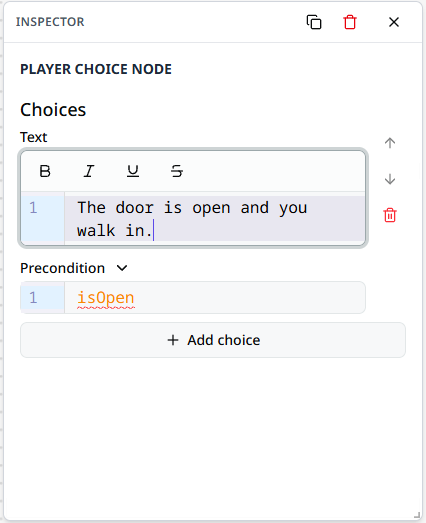
Hovering with the mouse will show the error message, as seen here:

For the above example, isOpen has not been defined in the variables list.
Best Practices
- Use parentheses — Improves readability with complex operations
- Good naming — Use clear names for variables (
flower_coloris more descriptive thanfc) - Avoid "magic numbers" — Use named variables where possible instead of hard-coded values