Graph Editor
The graph editor is where you edit conversations using nodes
To enter the graph editor, select any of your conversations from the conversation list.
Editing the Conversation Graph
- Drag nodes from the action bar to the canvas
- Connect nodes with edges to create dialogue flow
- Select nodes to edit their content in the inspector panel
- Use the context menu (right-click) or shortcuts for more control
Shortcuts
| Function | Shortcut |
|---|---|
| Copy | Ctrl + C |
| Paste | Ctrl + V |
| Undo | Ctrl + Z |
| Redo | Ctrl + Y |
| Duplicate selected node | Ctrl + D |
| Delete selected node(s) | Delete |
| Fit View | F |
| Drag select | Shift + Drag |
| Select multiple nodes | Ctrl + Click |
| Function | Shortcut |
|---|---|
| Copy | Cmd + C |
| Paste | Cmd + V |
| Undo | Cmd + Z |
| Redo | Cmd + Y |
| Duplicate selected node(s) | Cmd + D |
| Delete selected node(s) | Delete |
| Fit View | F |
| Drag select | Shift + Drag |
| Select multiple nodes | Cmd + Click |
Other Features
- You can move nodes with the arrow keys (Hold Shift to increase movement speed).
- Use the "Escape" key:
- To deselect node(s)
- To close the context menu, inspector panels, or dropdowns
- To cancel selection in the rich text editor
- Zoom in and out using:
- Mouse wheel or trackpad gestures
- The minimap controls.
- Pan the graph editor by:
- Holding the left mouse button and dragging the mouse
- Holding the middle mouse button and dragging the mouse
Minimap
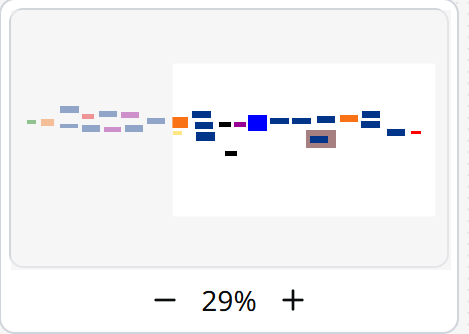
Use the minimap to navigate large conversations.
The white rectangle in the minimap represents the current view of the graph editor. The nodes' colours in the minimap correspond to their type, making it easy to identify different nodes at a glance.
You can move around your conversation by dragging inside the minimap.
Conversation Graph Elements
The conversation editor supports several node types:
- Dialogue Nodes: Display text to players
- Player Choice Nodes: Allow players to make decisions
- Conditional Nodes: Create branching paths based on conditions
- Assignment Nodes: Set variable values
- Note Nodes: Add annotations to your conversation graph
- Group Nodes: Organise related nodes together
- Start Nodes: Define the start of conversations
- End Nodes: Define the end of conversations
Saving and Managing
Conversations are automatically saved as you work.